
Stock you’ve promised to a buying group still looks like open inventory to Business Central. That’s a pretty expensive blind spot, and it’ll cost you even more if a priority customer misses out on inventory they need because you let it go to someone else.
Every unit you set aside for a buying group or key account is money you’ve already decided how to use. The next walk-in order shouldn’t get to overrule that decision, but in standard Business Central, nothing stops it.
Most teams protect those commitments with holding orders and a lot of manual work: watching for the right orders, finding the right holding order, and moving reservations over one line at a time. It holds up until order volume picks up and someone misses one.
Here’s how reservations work in Business Central, where the manual work piles up, and how inventory reservation reassignment in SalesPad® for Business Central moves committed stock to the right customer orders, hands-free.
Carrying Costs, Fill Rates, and Broken Commitments: Why Prioritizing Inventory Holds Matters for Distributors
Modern Distribution Management’s 2025 Year in Review named inventory management as one of the factors that separated distributors who outperformed in a slow-growth year from the ones who fell behind.
On the flip side, the payoff for getting it right is hard to ignore. According to Distribution Strategy Group, companies implementing intelligent inventory management report 5% lower carrying costs and a 5% higher fill rate at the same time.
Committed stock is where that control gets tested.
When a buying group’s allocation gets pulled into general orders, you’re the one telling a customer you made a commitment to that their order is, unfortunately, short.
What is an Inventory Reservation in Business Central, and How Does It Work?
In Business Central, to reserve inventory on a sales order, select the line, go to Line > Functions > Reserve, and use Auto Reserve to reserve from available inventory.
(That works when the order already exists. But the catch for distributors is that a buying group commitment usually comes before its members place their orders, so there’s nothing to reserve against yet.)
How Distributors Protect Committed Inventory in Business Central, and Where That Falls Short
The usual fix is a holding order: a regular Business Central sales order for a placeholder customer like “Buying Group A – Hold,” with a line for each committed item, inventory reserved on every line, and no plan to ship it.
That protects the stock, but getting it to the right customers is where it gets manual:
- Every time a buying group member orders, someone has to catch it, find the matching holding order, and move the reservation over line by line
- Miss one, and the reserved stock stays parked on the holding order while the member’s order competes with general demand
- Keeping track of who has drawn what usually takes a meticulously-managed spreadsheet and someone’s full attention
The alternative is not protecting the inventory at all and hoping general orders don’t get to it first, but that’s not a risk every distributor can afford to take.
The good news? If your team is moving reservations by hand, inventory reservation reassignment is the fix that handles it on every qualifying order for you, automatically.
The Hands-Off Approach: Automating Reserved Inventory with Inventory Reservation Reassignment
Inventory reservation reassignment is a recent enhancement to Mission Control™ in SalesPad for BC. Here’s how it works.
You keep using holding orders to lock committed stock, and the system moves those reservations to real customer orders as they come through your workflow, based
on policies you set. From there, you get:
1. Policies that decide which customers draw from which holding orders
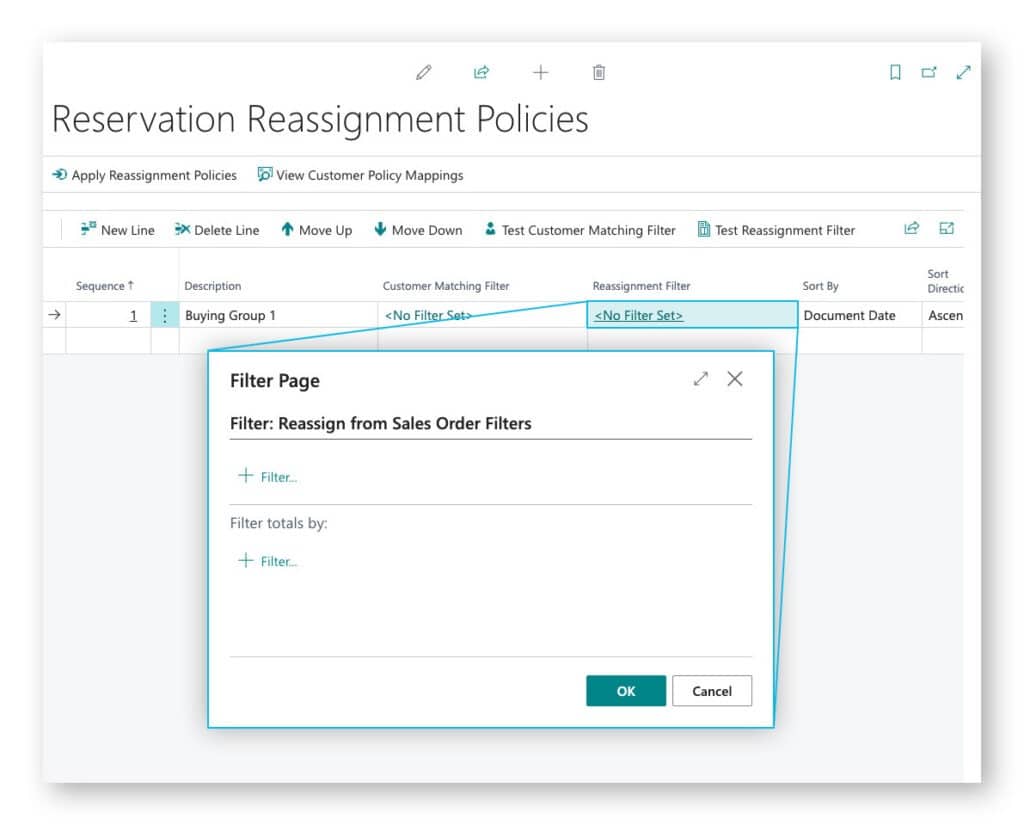
On the Reservation Reassignment Policies page in Business Central, each policy pairs two filters. The Customer Matching Filter defines which customers belong to the policy, using a buying group field, specific customer numbers, or a range. The Reassignment Filter defines which holding orders those customers can draw from.
You can test both filters before saving. If a customer matches more than one policy, the lowest sequence number wins. You can then click Apply Reassignment Policies to generate the customer-to-policy mappings.use.
2. Reservations that transfer as orders move through Mission Control
Add the Reassign Sales Order Reservations action to your order workflow in Mission Control, with optional conditions like customer segment or order value.
When a mapped customer’s order hits that action, the system finds the holding orders their policy points to, matches lines by item, location, and variant code, and moves the reservation to the customer’s order, up to the quantity on the order line.
3. An activity log on both orders for every transfer
Each transfer writes an entry to the holding order and the customer’s order. That may look like: “Reserved 20 of 1896-S to Line 1000 from S-ORD123 Line 3000,” with links to the document and the item card. When someone asks where committed stock went, the answer is right there on the order.
4. Partial transfers that fill the gap from general stock
If a holding order has 60 units reserved and the customer orders 100, the system moves 60 and leaves 40 unreserved. If you chain a Reserve Inventory action right after the reassignment, those 40 get reserved from general stock. (The same setup handles orders that mix buying group items with everything else.)
5. Everyday orders that flow through untouched
If a customer isn’t mapped to a policy, or no open holding order matches, the action still succeeds and the order moves on with no reservation changes. To catch anything that comes out unreserved, add an alternative path that routes it to a queue (like “Missing Reservations”) for your team to review.
6. Customer mappings that stay current on a schedule
Mappings are a point-in-time snapshot, so re-run Apply Reassignment Policies when a customer joins a buying group, a customer record changes, or you edit a policy’s Customer Matching Filter. Or schedule it through Business Central’s Job Queue. A nightly run maps the day’s changes by the next morning, and you can still run it manually anytime.
One thing to keep on your own radar: the system won’t alert you when a holding order runs low, so check remaining reserved quantities regularly and replenish as needed.

How Reservation Reassignment Works in 3 Steps
As orders move through Mission Control, the system matches the customer, item, location, and variant, then reassigns the appropriate reservation without manual intervention.
Here’s how it works:
- Step 1: You create placeholder sales orders in Business Central and reserve inventory against them. These orders “lock” or “hold” the inventory so it cannot be claimed by other orders.
- Step 2: Using Cavallo’s Reservation Reassignment Policies screen in Business Central, you create policies that specify which customers can draw from which holding orders. Policies use filters to match customers (e.g., all customers with a specific attribute, or specific customers) to source documents (e.g., holding orders for a particular buying group).
- Step 3 (Automated): When a qualifying customer’s order moves through Mission Control with the “Reassign Sales Order Reservations” action, the system instantly transfers reservations from the holding order to the real order.
Just three simple steps, and what you get at the end of the day is more reliable customer commitments, less operational work, and better control over how limited inventory is distributed.
Your Next Steps for Keeping Inventory Commitments Without the Manual Work
If your team is protecting buying group-committed and key account-owed stock by hand, Inventory Reservation Reassignment gives you a repeatable way to keep those promises, with a record of every transfer.
Deciding which customers come first when stock runs short is part of that call.
Read how to prioritize inventory for your best customers to see how SalesPad for BC and Customer IQ handle it. (Or request a demo to see reservation reassignment applied to your own buying groups and key accounts.)
Thinking About Order Exceptions Beyond Reserved Inventory? So Are We
In the previous blogs of the order exceptions series, we covered customer-specific pricing and automated sales orders.
Reserved inventory is the third order exception theme in this series, and we’ll keep taking them one at a time, showing how to turn each manual workaround into an automated workflow in SalesPad for Business Central.
Up next: What to do when the right document goes to the wrong place.