
For distributors, printing itself is as easy as pushing a button.
But making sure the right document prints or sends, in the right format, at the right location, plus making sure that happens every time an order moves forward? That’s where distribution operations get complex.
This can mean a pick instruction may belong at a specific warehouse, a regulated item may need an additional label, or a customer may need order confirmations and tracking updates in a specific format. And as the rules you need your order to follow multiply, printing and email routing becomes a manual decision that’s left to your team every time.
At scale, and especially when document routing depends on the order, customer, item, warehouse, or workflow stage, Business Central’s standard out-of-the-box capabilities aren’t always specialized enough. And distributors need a repeatable way to apply those rules on every order.
That’s what Smart Printing™ in SalesPad® for Business Central is built for.
The Stakes? Printed Documents Control the Next Step of the Order Process
On a distribution floor, a print job is the signal that triggers the next step of the order process. Translation: it’s what keeps an order moving.
This may look like a pick instruction telling warehouse staff what to pull, a packing slip that travels with the shipment, or a blind shipment that may require a form that doesn’t reveal the shipper’s information.
The same goes for the documents that leave by email. Order confirmations and tracking updates still have to reach the customer in the format they require and expect.
When that document prints at the wrong location or uses the wrong layout, the consequences can reach far beyond just the reprint you’ll need to do. Warehouse work stalls, too. Shipments are delayed, and worse, compliance requirements may be missed in the process.
The goal is to apply the right business rule every time: select the correct document and layout, route it to the right destination, and trigger it when the order reaches the right point in the workflow.
With Smart Printing™, those decisions do not have to depend on someone remembering an exception. Instead, SalesPad applies the rules your operation has already defined, so document output follows the order consistently.
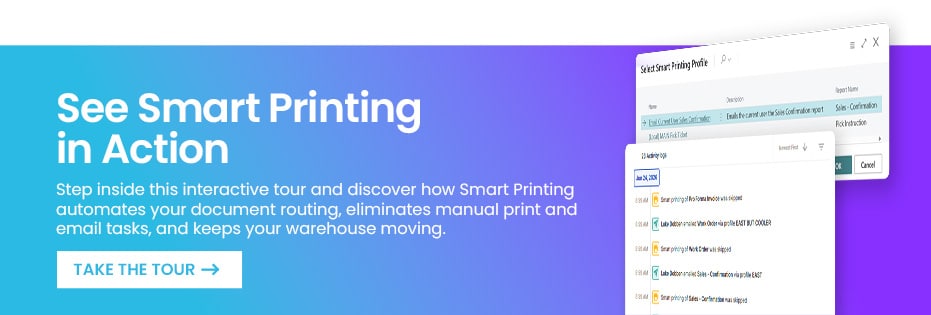
How Smart Printing Routes Your Documents for You, So You Cut Out Human Error
Smart Printing™ defines what should print or send, when it should apply, and where it should go — by using print profiles to connect a document’s conditions to its output. Each profile defines the report and layout to produce, the destination for the output, and the conditions that determine whether it applies, and those conditions can draw on information already associated with the order, including:
- Customer details
- Sales document and line information
- Item attributes
- Warehouse or location
- Customer-defined fields
That context gives distributors a practical way to define the rules behind common document exceptions.
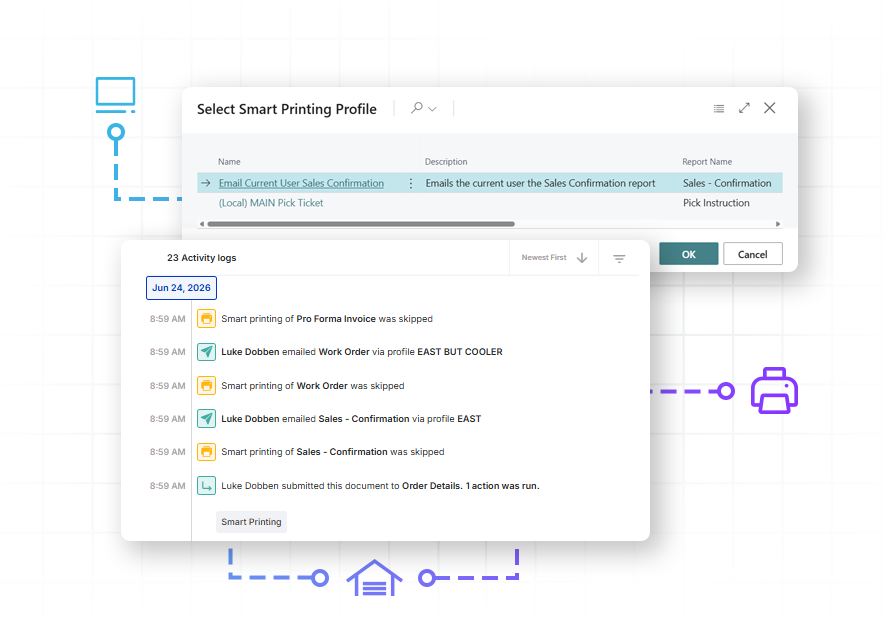
When a user prints a document, Smart Printing™ presents the profiles that qualify for that document. (In practice, that means the team only sees the relevant options, instead of sorting through reports, layouts, or printer choices that don’t apply to that particular document.)
Also with Smart Printing™ for SalesPad for Dynamics 365 Business Central:
1. You Can Keep the Layouts and Printers You Use Today
Smart Printing™ can use Business Central reports and customized Word or RDLC layouts, allowing your team to keep working with the branded forms, customer-required documents, and warehouse-specific output they know and rely on.
With Smart Printing™, the print profile determines whether the routing rule applies, which report and layout to use, and where the output goes. The layout then controls what appears on the printed document. (For example, a profile can select the appropriate warehouse-specific layout, while that layout controls the fields and lines shown on the pick instruction.)
Smart Printing™ routes output to a Business Central printer or to a printer’s email address (email-to-print), working with the printer environment already in place, and offering a practical way to apply routing rules to the printers their existing setup makes available. Note: for SalesPad users, that includes warehouse printers, thermal-label printers, ZPL or Zebra output, and specialty media supported by the underlying printer configuration.
2. You Can Send Customer Emails With the Same Rules
Smart Printing™ isn’t just about printing; it can route emails too, like confirmations or tracking updates, using the correct format every time.
The same profiles that decide which layout prints at which warehouse can also decide what gets sent to the customer, so customer-specific formats don’t depend on someone remembering them.
3. You Can Automate Printing When the Workflow Calls for It
Smart Printing™ makes printing and sending more consistent by applying the right profile and routing logic. And when paired with Mission Control™, you can print or send order documents (labels, pick instructions, invoices and more) at the right place and time in your process, without lifting a finger.
A Mission Control™ workflow action can point to one or more profiles, while each profile’s own conditions determine whether it applies to a particular document. That means Mission Control™ can initiate document output when:
- An order is released for picking,
- A shipment posts and an invoice is needed,
- A document enters or leaves a workflow queue,
- Or when a scheduled batch needs to print before the next shift.
This moves document output into the workflow, where it belongs. Instead of relying on a separate manual step, the necessary paperwork is initiated when the order reaches the exact point where the operation needs it.
4. You Retain a Record of Each Print Request
Smart Printing™ records every print and email request on the document, including what was requested, when it was requested, where it was routed, which profile was used, and what initiated the request.
That record helps answer questions that come up when paperwork is missing or needs to be reprinted:
- Was the document printed or emailed?
- Which profile and layout applied?
- Which printer or email address received the request?
- Did a user initiate it, or did it run through the workflow?
5. You Can Turn Print Exceptions Into Defined Rules
Distribution teams shouldn’t have to rely on their colleagues’ collective historical knowledge to make routine document decisions. With Smart Printing™ for SalesPad for BC, they don’t have to anymore.
Smart Printing™ in SalesPad for Business Central gives distributors a scalable and accurate way to select, print, and send documents based on the conditions that matter most for each case. Plus, it can also reduce manual printing steps, prevent paperwork mistakes, and keep documents moving with every order. Add Mission Control™, and those same rules can run as the order moves through the workflow, too.
Curious to see it in action? Request a demo to see how Smart Printing™ can support document-routing rules across your distribution workflow.
What’s Next? More Tips on Handling the Order Exceptions Most Common in Distribution
In the previous blog posts of the order exceptions series, we’ve covered how SalesPad for BC helps distributors prioritize inventory reservations for key customer orders using Mission Control™. We’ve also covered customer-specific pricing and automated sales orders.
Up next: What happens when service work is managed outside the same controls as sales.